

Executive summary
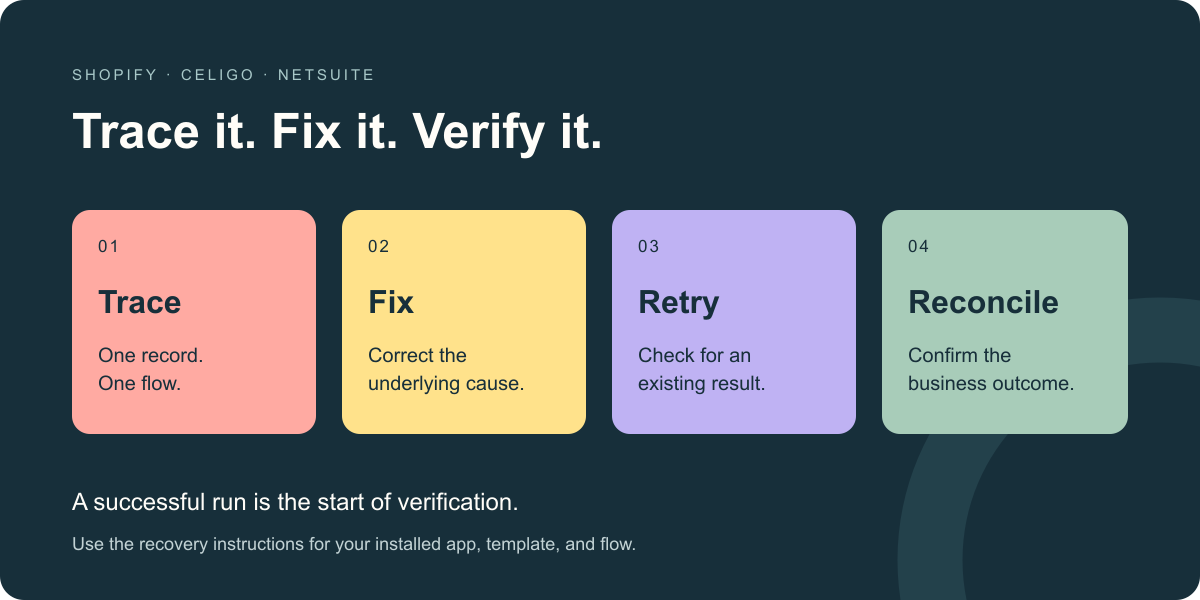
Start with one record and a clear recovery check.
- ✓Capture the source record, destination record, flow, and run time before changing anything.
- ✓Separate a record that never qualified for export from one that failed during import.
- ✓Check whether a destination transaction exists before retrying or manually recreating it.
- ✓A successful flow run still needs a business-level reconciliation.
First response: establish what failed
Start with one affected record and one known-good comparison. A report that orders are missing can mean several different things: a flow did not select the order, a lookup failed, the destination rejected it, or the record arrived with an unexpected status. Each needs a different correction.
The sequence below is an operational checklist, not a replacement for the troubleshooting instructions for your installed app or template. Settings and supported recovery options vary by product and flow.
- Record the Shopify order ID, store, payment status, and time of the expected sync.
- Find the relevant Celigo flow and run. Capture the error message and affected record without sharing credentials or customer payment data.
- Search NetSuite for the corresponding transaction and its external reference. Determine whether it is missing, incomplete, or already correct.
- Identify the cause and the owning team. Test the correction on one record before replaying a backlog.
Match the symptom to the next check
Use the business symptom to narrow the investigation. Avoid changing several mappings at once: that makes it harder to establish which change corrected the problem.
| Symptom | Check first | Confirm recovery |
|---|---|---|
| Order never reaches NetSuite | Eligibility rules, schedule, connection, and export selection | The intended transaction exists once with the correct lines |
| Order import fails | Item, shipping, payment, and required-field mappings | The corrected record imports and totals reconcile |
| Stock differs between systems | Variant identity, quantity definition, and location mapping | The intended location and quantity reach Shopify |
| Shipping update is missing | Order/line linkage and fulfillment eligibility | The intended shipment, quantity, and tracking are visible |
| Refund or payout does not reconcile | Original transaction links, flow scope, fees, and currency | Finance can trace the records and explain any remaining variance |
When an order is missing or rejected
If there is no failed import record, inspect selection first. Is the correct store connected? Did the order meet the flow's date and status criteria? Was the flow enabled when it should have run? Compare with a recent successful order from the same store and order type.
For an import error, follow the specific message. Celigo documents examples involving missing shipping-method mappings, missing payment-method mappings, and item lookups that cannot find the expected NetSuite item. Check the source value and the intended destination record before adding a default or creating a new item.
A fallback that makes the error disappear can still produce a wrong transaction. For example, assigning every unknown shipping method to one default may conceal an unreviewed business rule. Have the process owner approve the mapping, then verify the imported order rather than stopping at a green run status.
Separate stock issues from shipment issues
Inventory and fulfillment are different processes. A stock update does not prove a shipment was created, and a tracking number does not prove the available quantity is correct. Follow the specific flow and record type behind the symptom.
For stock, capture one SKU or variant, the NetSuite location, the Shopify location, the quantity being exported, and the last successful run. Check whether the implementation aggregates locations or maps them individually. For shipping, trace the original order and line identifiers, shipped quantities, and tracking information through the fulfillment flow.
For detailed quantity, buffer, and location checks, use the existing Shopify–NetSuite inventory sync guide.
Retry after fixing the cause
A retry repeats processing; it does not establish that another attempt is safe. Before retrying an order, check whether NetSuite already contains a transaction created by an earlier attempt or by a staff member. Preserve the integration's order references and duplicate-prevention rules while investigating.
Use the recovery action supported for that flow. Retry one affected record after correcting its cause, then inspect the destination. If the result is correct, process a controlled batch and reconcile it. Keep a list of records that still need review so that resolving the queue does not hide an incomplete business process.
- Do not delete or recreate financial records solely to clear an integration error.
- Do not broadly disable NetSuite validations, scripts, or duplicate controls to force an import.
- Check refunds and payments with finance before replaying records that could affect money movement.
- Document the original failure, correction, retried records, and remaining exceptions.
Prove the business result and prevent recurrence
An error-free run is useful evidence, but it is not the complete acceptance check. Confirm that the right transaction exists once, its lines and totals are correct, and the next business step can proceed. For a fulfillment, check the shipped quantity and tracking. For a refund, confirm the original transaction relationship and accounting result.
Recurring errors need an owner and a prevention step. Review mapping changes when a payment gateway, shipping method, item model, or location changes. Add a representative test to the release checklist and agree who checks the error queue. Reconciliation should compare business records across the systems, not just counts of successful flow runs.
What to send when escalating a sync issue
A useful support handover identifies the store, flow name, approximate failure time, affected record IDs, exact error, and a successful comparison. Include the expected business outcome and recent configuration changes. Redact personal information from shared screenshots and payload samples; provide access through your normal approved process.
DevTeamPro works across Celigo, NetSuite, and the storefront. Our Antique Candle case study covers connected order, inventory, and wholesale invoicing work. That project context illustrates why an integration investigation often needs both application knowledge and flow knowledge.
For help diagnosing a recurring failure, explore our Shopify–NetSuite integration support.
Technical questions
Useful answers before implementation.
Why is my Shopify order not syncing to NetSuite?+
First determine whether the order was selected for export. Then inspect the flow run and error message. Common investigation areas include order eligibility, connections, item identity, reference mappings, and destination validation. The symptom alone does not identify the cause.
Should I retry every failed Celigo record?+
No. Correct the cause and check whether the destination record already exists. Test the supported retry action on one record, verify its business result, and only then replay a controlled batch. Payments and refunds may need finance approval before recovery.
Why is inventory correct in NetSuite but wrong in Shopify?+
The two screens may show different locations or quantity definitions. Trace one variant through the exported quantity, location mapping, and flow run. Also check whether another process updates Shopify stock. Use the inventory sync guide for the detailed sequence.
Can custom work fix an unsupported Integration App requirement?+
Sometimes a separate solution can address the requirement, but do not assume a managed Integration App can be modified. Confirm supported configuration, template options, platform licensing, and the ongoing owner of any custom flow before committing to a fix.
Official references
Continue with primary documentation.
Celigo: Troubleshoot Shopify–NetSuite Integration App errors↗Celigo: Shopify–NetSuite Integration App overview↗Celigo: Shopify–NetSuite D2C template implementation guide↗DevTeamPro expertise